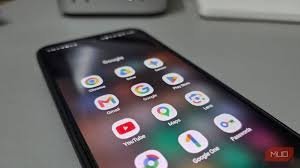
The Mystery of the Battery Drain: Is Google Play Services the Real Villain?
We’ve all been there: you check your battery settings, and there it is—Google Play Services sitting right at the top of the list, consuming a massive chunk of your power. Your first instinct might be to force-stop it or restrict it entirely to save your phone from dying mid-day. But wait! Before you do that, you need to understand a crucial secret about how Android works.
The truth is, Google Play Services is rarely the actual cause of the drain; it is usually just the messenger. Think of it as Android’s behind-the-scenes support system. It handles location requests, account syncing, and push notifications for almost every app on your device. When another app asks for a task, Play Services does the heavy lifting. Consequently, the battery stats show Play Services doing the work, but not necessarily which app triggered the request.
The Hidden Culprit: The Google App
In many cases, the real energy hog is the Google App itself. Through background syncing, voice recognition, and constant location tracking, it keeps the processor awake via “wake locks,” preventing your phone from entering a deep sleep state. To reclaim your battery life, you don’t need to disable core system services—you just need to tweak a few settings.
3 Proven Steps to Stop Android Battery Drain
If you want to squeeze an extra hour or two out of your charge, try these targeted optimizations:
- Disable the Discover Feed: The news stream that appears when you swipe right loads articles and images in the background. To turn it off, open the Google App → tap your Profile Picture → Settings → Other settings → toggle off Discover.
- Silence “Hey Google”: The microphone listening for the wake word consumes power around the clock. To disable this, open the Gemini app (or Google Assistant settings) → Profile Picture → Settings → Talk to Gemini hands-free → toggle off “Hey Google.”
- Restrict Background Battery Usage: To put a hard limit on the Google app, go to Settings → Apps → Google → Battery and select “Restricted.” This prevents the app from running excessive background jobs.
Understanding “Wake Locks” and Google’s New Standards
For the tech-savvy, the real issue is often Partial Wake Locks. These are mechanisms that allow an app to keep the CPU running even when the screen is off to finish a task, like downloading a large file.
Recognizing that some apps abuse this feature, Google has implemented stricter quality standards for the Google Play Store. Starting in 2026, apps that hold non-exempt wake locks for more than two cumulative hours a day (when the screen is off) may be flagged. Google may even display a warning to users stating that the app “may cause their device’s battery to drain faster,” potentially leading to the app being removed from recommendation surfaces.
How to Verify Your Results
After applying these changes, give your phone a full day of normal use. To see if it worked, navigate to Settings > Battery > Battery usage. Check the background time for the Google app. If the time has decreased, you’ve successfully optimized your device!
What about you? Have you noticed a specific app draining your battery despite your best efforts? Share your experience in the comments below—let’s help each other optimize our devices!